Pro Tools Tutorial - Getting Started Lesson 3 - iLok
2024.04.13·AVID Pro Tools·4 min readMUZIUM
Also available in:
English···
AVID Pro Tools Tutorial - 'Getting Started' Series, Lesson 3
Today's Topic: Download & Install
Date Written: March 20, 2024
Computer Environment Used for This Tutorial
Apple MAC Studio M1 Max, 32GB (2022)
13.6.4 Ventura
Pro Tools Ultimate 2024.03
Mac OS is set to English. Pro Tools will also be covered in English.
iLOK
Today's topic is iLOK, which must be installed and managed as a prerequisite for using Pro Tools.
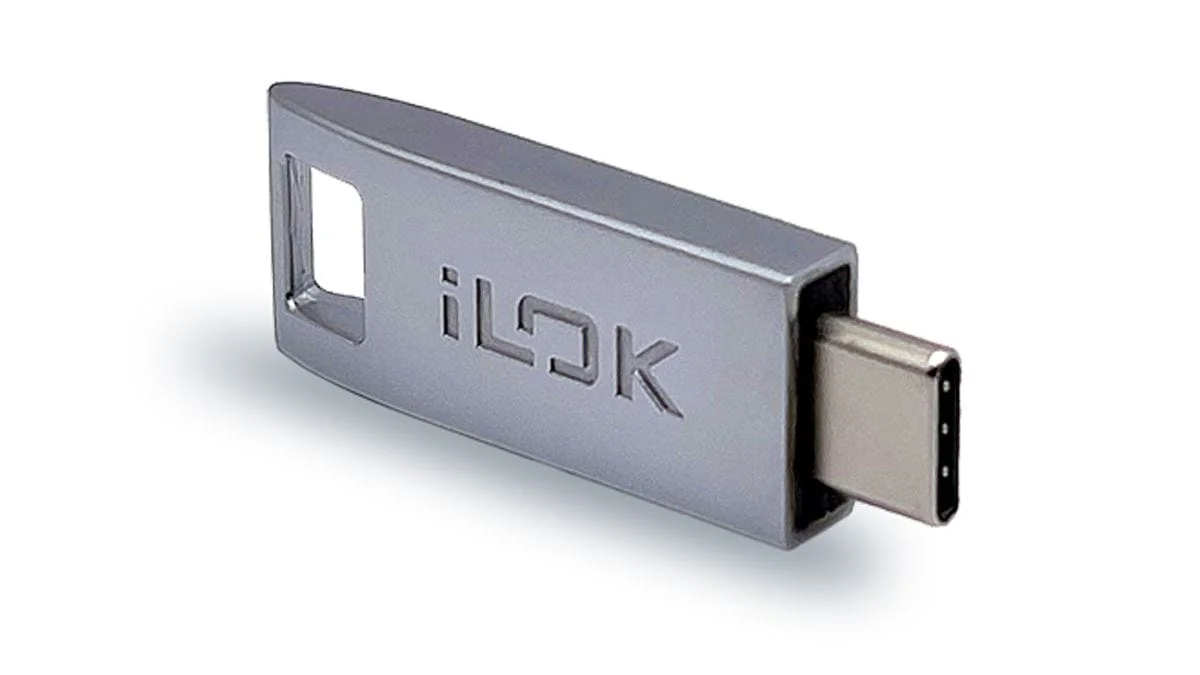
iLok is one of the systems for protecting audio software and is used for managing software licenses. Developed by Pace Anti-Piracy, it manages software usage rights digitally and operates either as a physical USB dongle or a software-based license to protect software purchased by users.
iLOK, considered one of the most secure software protection tools available, is widely used to protect Pro Tools and many other plugins and programs.
iLOK is still known to be uncrackable. In the early days, iLOK only supported USB keys, meaning a physical USB was absolutely required. However, with the introduction of hardware authentication and iLOK CLOUD, it has become much more widely accepted and used without much resistance.
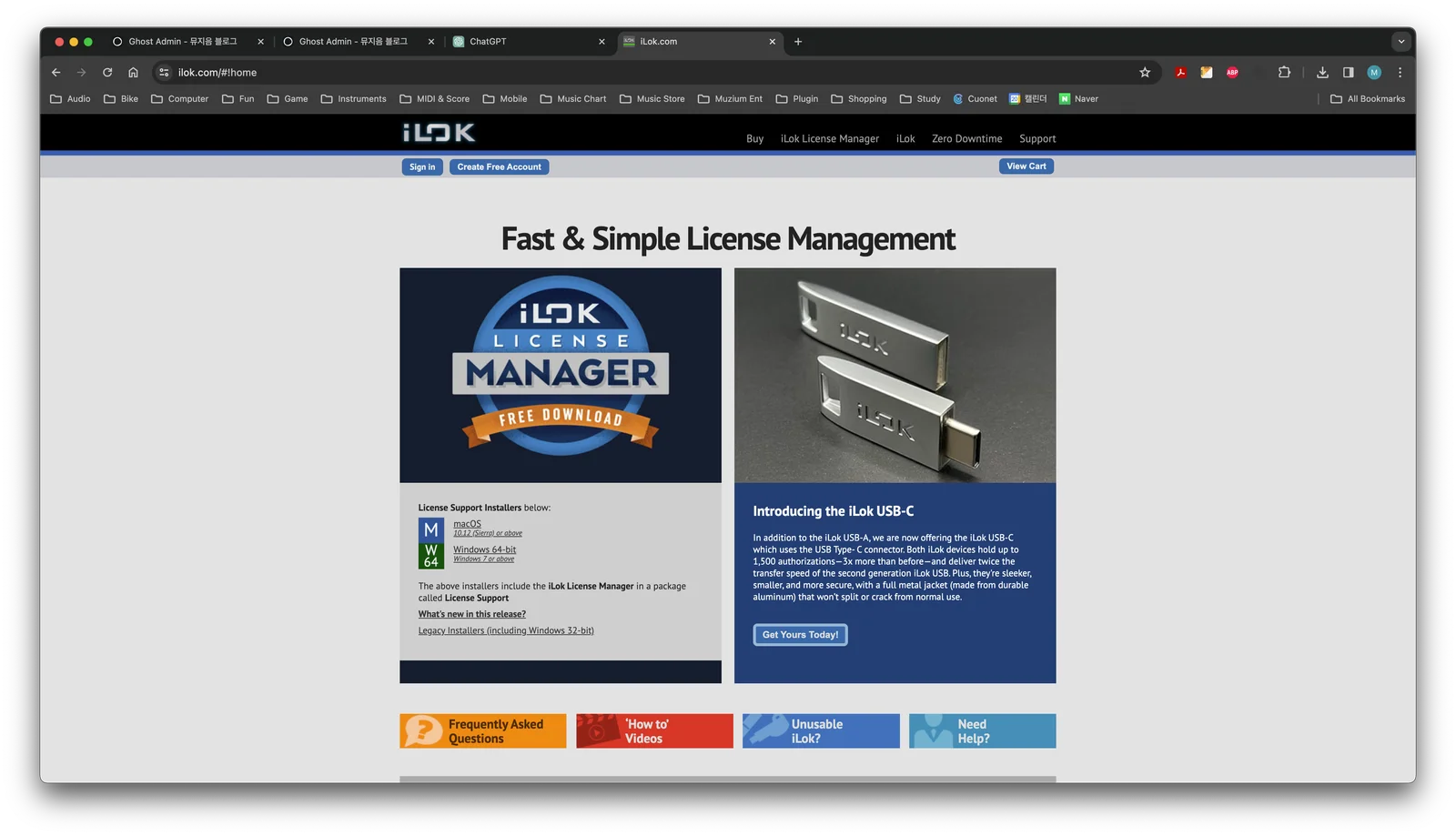
Currently, iLOK can be used without a physical USB key, and you can register an account and download it from their website.
Without a USB key, you can authenticate via two methods: iLOK Hardware or CLOUD.
iLOK Interface
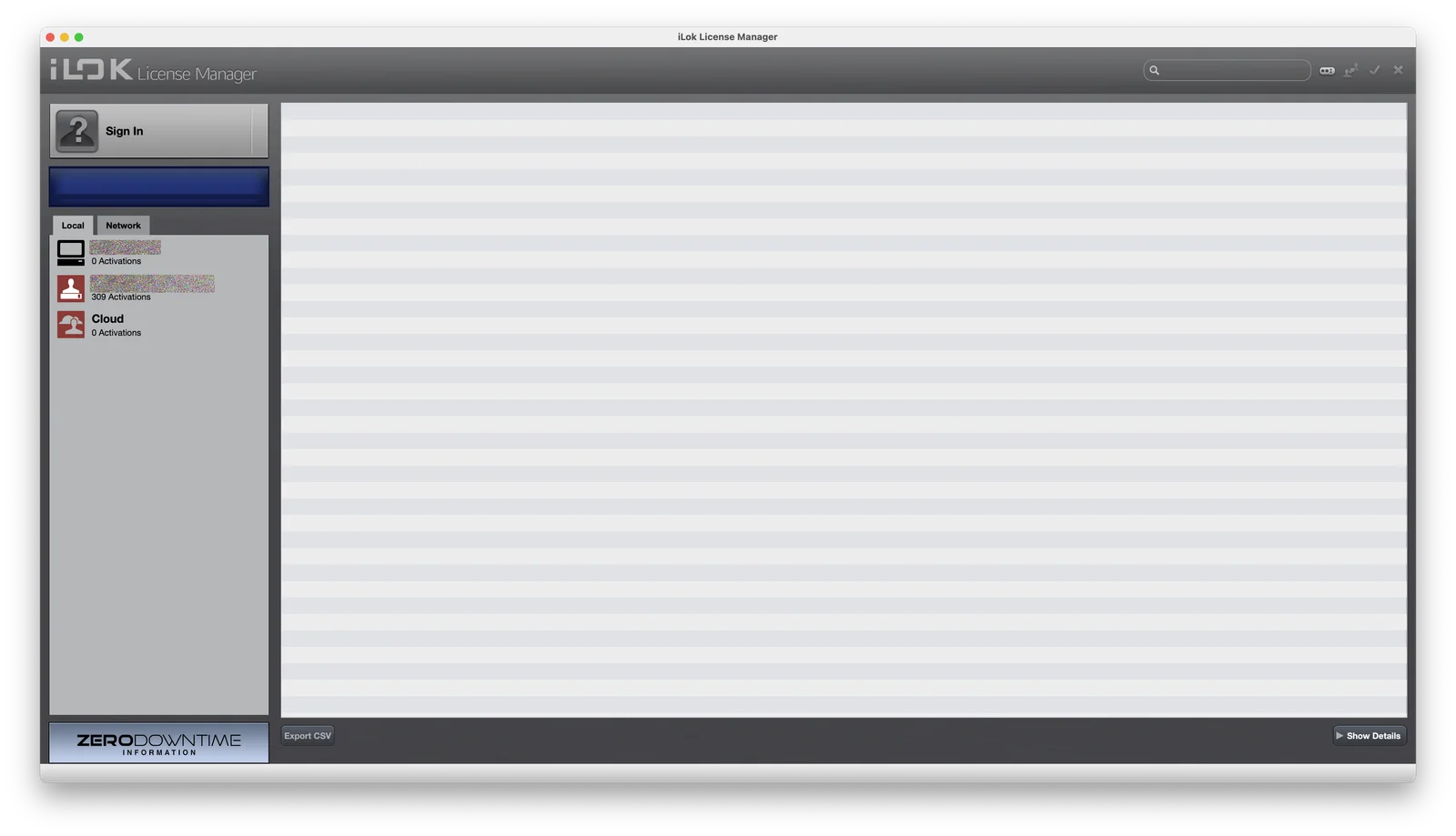
Once iLOK is installed, the screen looks like this. Since I haven't logged in yet, there's a prompt asking me to sign in, along with three items visible: a computer icon for hardware authentication, the currently connected iLOK USB key, and CLOUD.
On the side, you'll also see "Server," which allows sharing over the internet — but unless you're running a fairly large-scale company, you'll almost never need it, so feel free to ignore it.
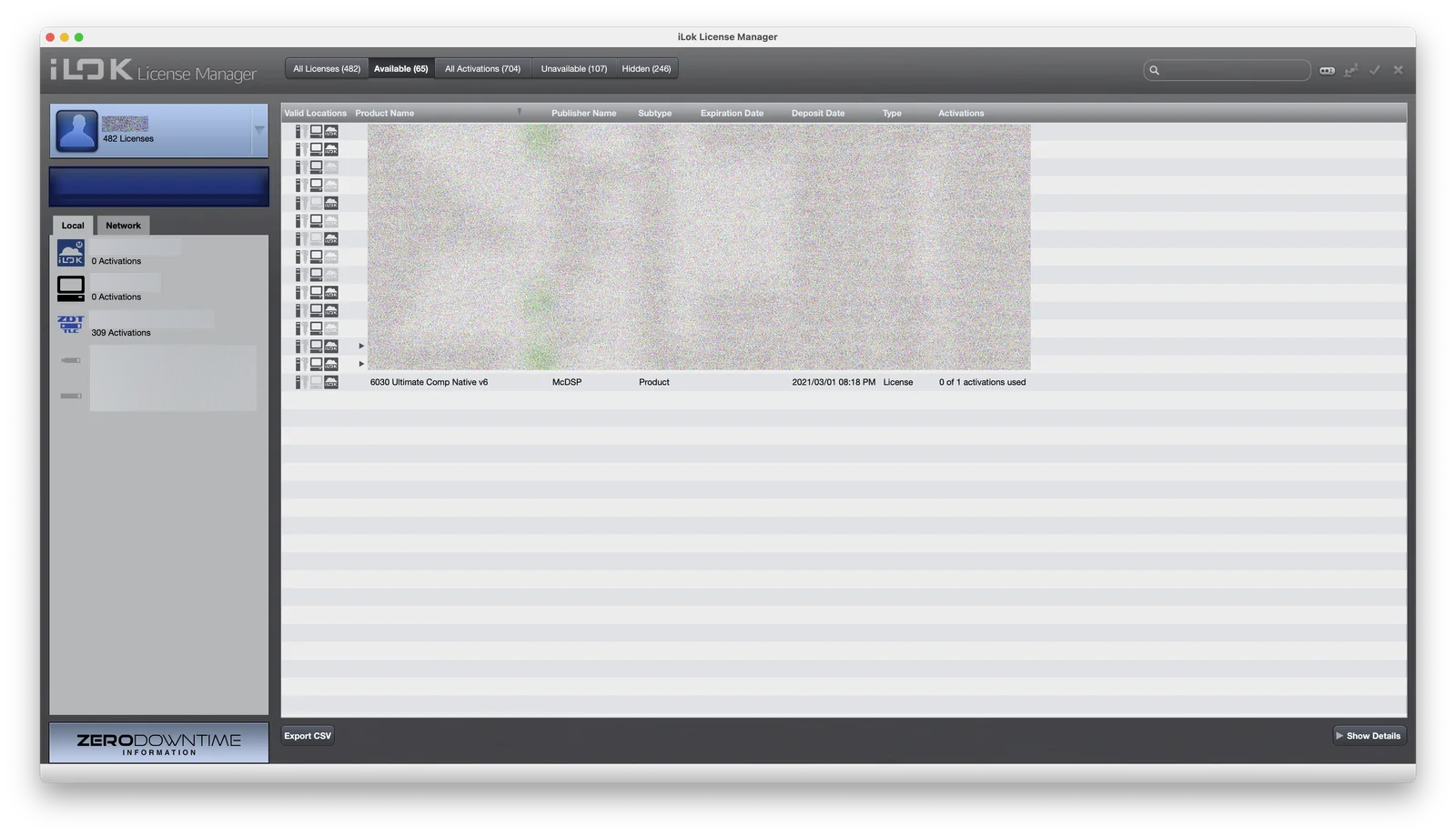
Once you log in, the full screen becomes visible.
You can see the iLOK account ID, along with CLOUD and Hardware activated in blue below, as well as the USB keys.
I'm using 3 USB keys, so all 3 are visible, and ZDT has been set on the key I'm actively using. I'll explain this later.
At the top, licenses are categorized into four sections based on their status.
All / Available Licenses / Licenses in Use / Unavailable Licenses / Hidden
Available licenses refer to licenses that are registered in iLOK but have not yet been activated.
Unavailable licenses are not ones that are already registered — rather, these are licenses that are completely unusable due to subscription cancellation, demo versions, and so on.
Hidden is where you tuck away licenses you're not using and don't want to see.
Now, shall we take a closer look at how everything is organized?

These are licenses I'm not currently using due to compatibility issues. (Not worth paying to update something I'm not using.)
On the left side, you'll see four icons, which indicate the types of iLOK that the product supports.
In order: iLOK USB 3rd Generation / iLOK USB 2nd Generation (legacy) / Hardware / CLOUD.
This is very important — some products strictly require a USB key.

This is the license for the Massenburg EQ I used as a demo a while back, and as you can see, a physical USB key is required to use it. For this reason, you should always check in advance before purchasing software that uses iLOK. (These days, most products generally support at least hardware authentication.)
Moving past the icons on the left,
the columns show: Product Name / Company / Type (product, subscription) / Duration / License Type / Activation Status.
You must Activate the license in iLOK to use the plugin without any issues.
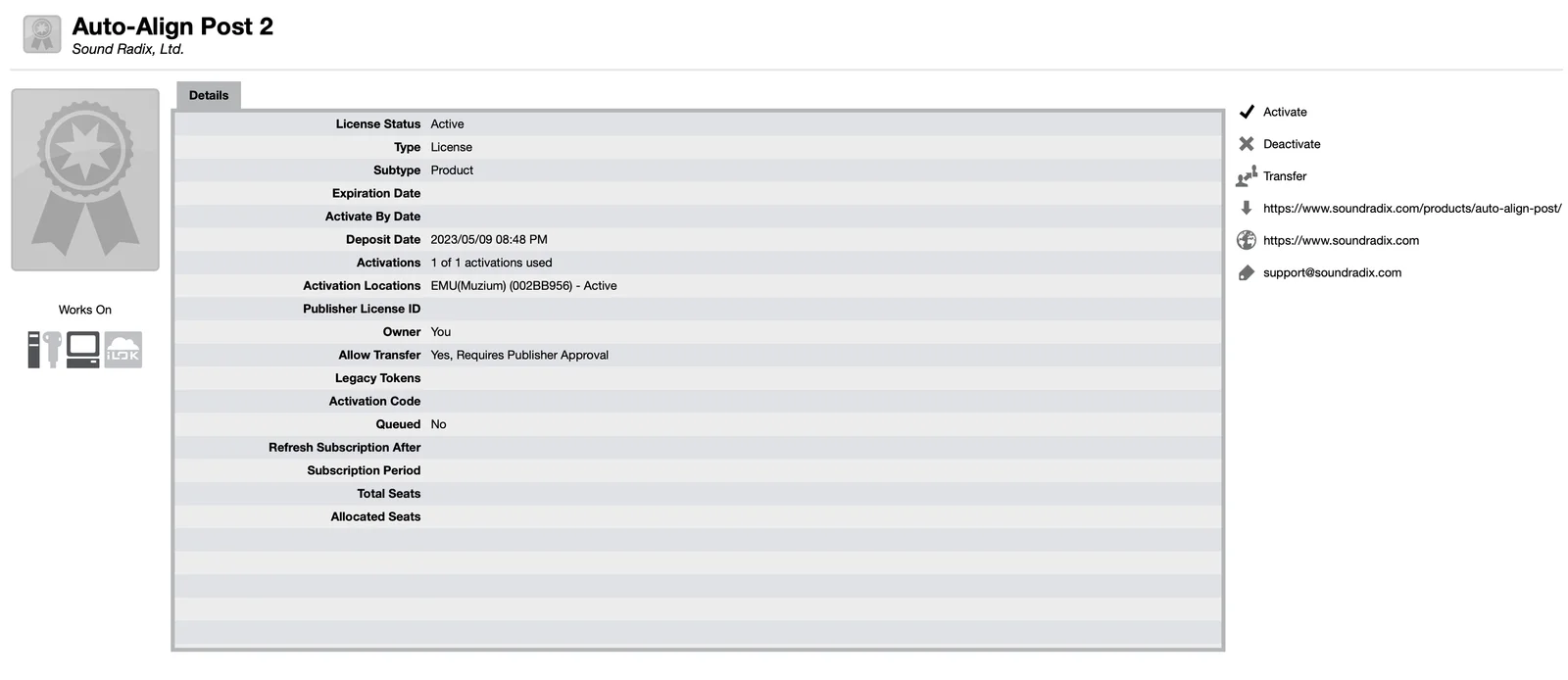
When a product is properly activated, double-clicking on it will bring up a detailed information screen like this.
What is iLOK ZDT (Zero Downtime)?
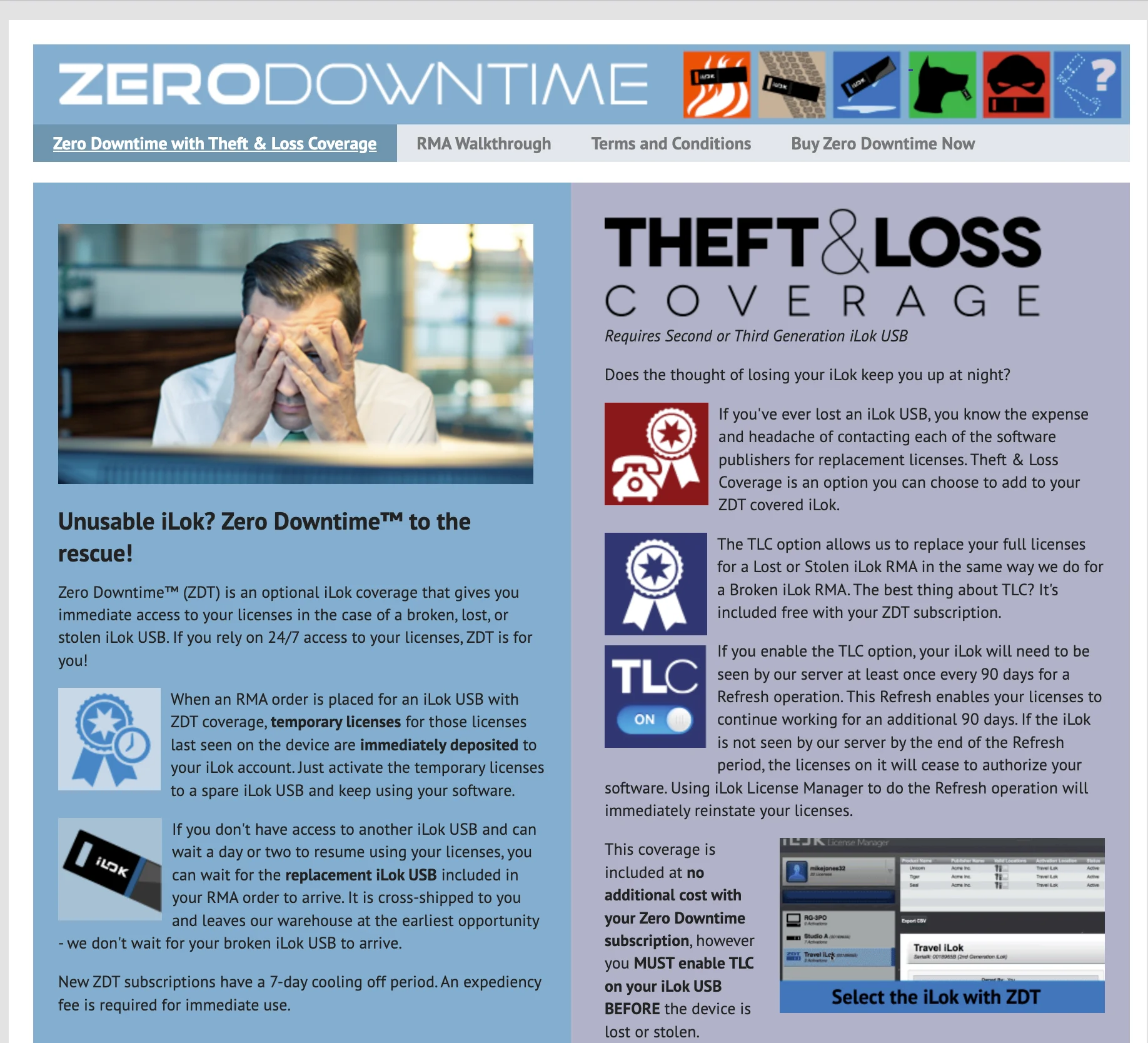
What if your iLOK breaks while you're using it in the studio? What if you lose it while carrying it around?
It's difficult to even imagine — it would cause an enormous problem for your studio's operations right then and there.
That's where this comes in. Zero Downtime creates a temporary license so you can keep working immediately in the event that your iLOK is damaged or lost. That way, you can continue using your licenses without any disruption to studio operations.
In reality, if you lose or misplace your iLOK, recovering it requires going through a lengthy process. It can take several days, and you'll need to reach out to overseas developers as well — it gets very complicated.
This is the process for recovering licenses for AVID products — and you have to go through the entire process individually for every single iLOK plugin you own.
If you had 100 plugin developers' products stored on your iLOK, you would have to contact all 100 of them directly.
If you're part of a studio or hold an important position with a heavy workload, I strongly recommend subscribing to ZDT. (It's not that expensive, either.)
Closing Thoughts
Starting from the next lesson, we'll finally be diving into Pro Tools proper and working through the tutorials hands-on.
Thank you.