

Pro Tools Tutorial – Extra – Clips Getting Consolidated on Track Commit
2024.08.12·AVID Pro Tools·5 min readMUZIUM
Also available in:
English···

AVID Pro Tools Tutorial – Extra – Consolidation Issue When Using Track Commit
Today's topic: Consolidation Issue When Using Track Commit
Date written: August 12, 2024
Computer environment used for this tutorial
Apple MAC Studio M1 Max, 32GB (2022)
13.6.7 Ventura
Pro Tools Ultimate 2024.06
Mac OS is set to English. Pro Tools is also used in English.
Consolidation Issue When Using Track Commit
Today's topic covers the consolidation issue that can occur when using Track Commit in Pro Tools.
We will explain the cause and how to resolve it.
In Pro Tools, there is a process called Track Commit that allows you to directly apply plugins assigned to a track directly onto the audio.
The feature itself is fairly common, but...
Pro Tools' Track Commit has a bit of a problem.
(It's not exactly a bug, but rather an issue with Pro Tools' internal Track Commit processing. Though you could call it a bug if you wanted to...)
In certain situations, as shown in the image below, when there are multiple clips, they keep getting merged together on their own even though the Consolidate Clip option was clearly disabled during Commit.
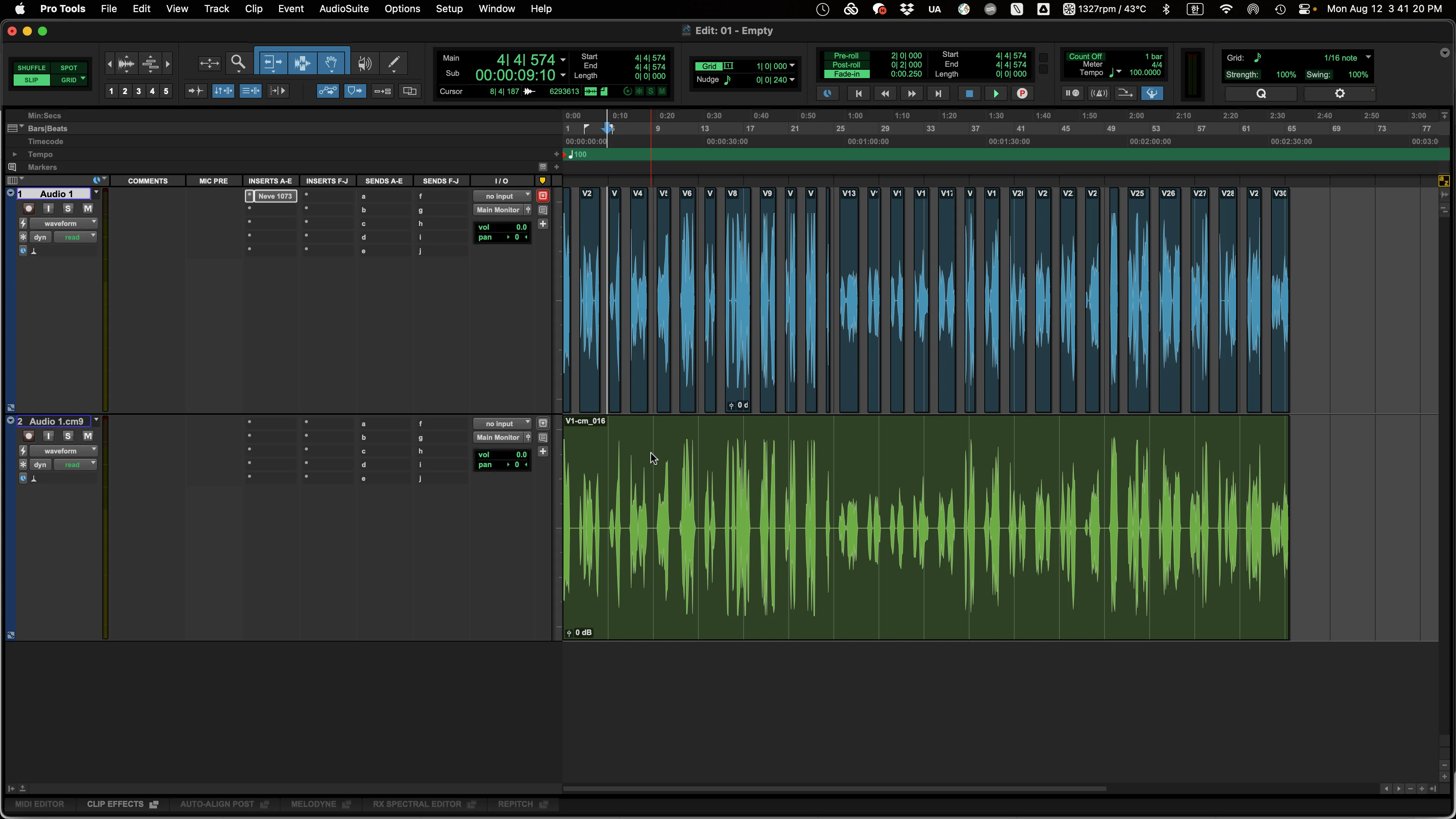
This phenomenon occurs occasionally even though the option has clearly been disabled. If you work in Post Production rather than music, you'll encounter this more frequently since there tend to be more reasons to use Commit in that field.
Cause
This happens because when Pro Tools internally processes Track Commit, the criteria it uses to distinguish individual clips is not simply the clip length we see or the specified selection range — there is an additional condition of -144dB.
This condition seems to exist due to Audio Tails caused by plugins and similar factors, though I'm not entirely certain.
(I suspect the Entire Selection range may also be checked based on factors like those mentioned above...)
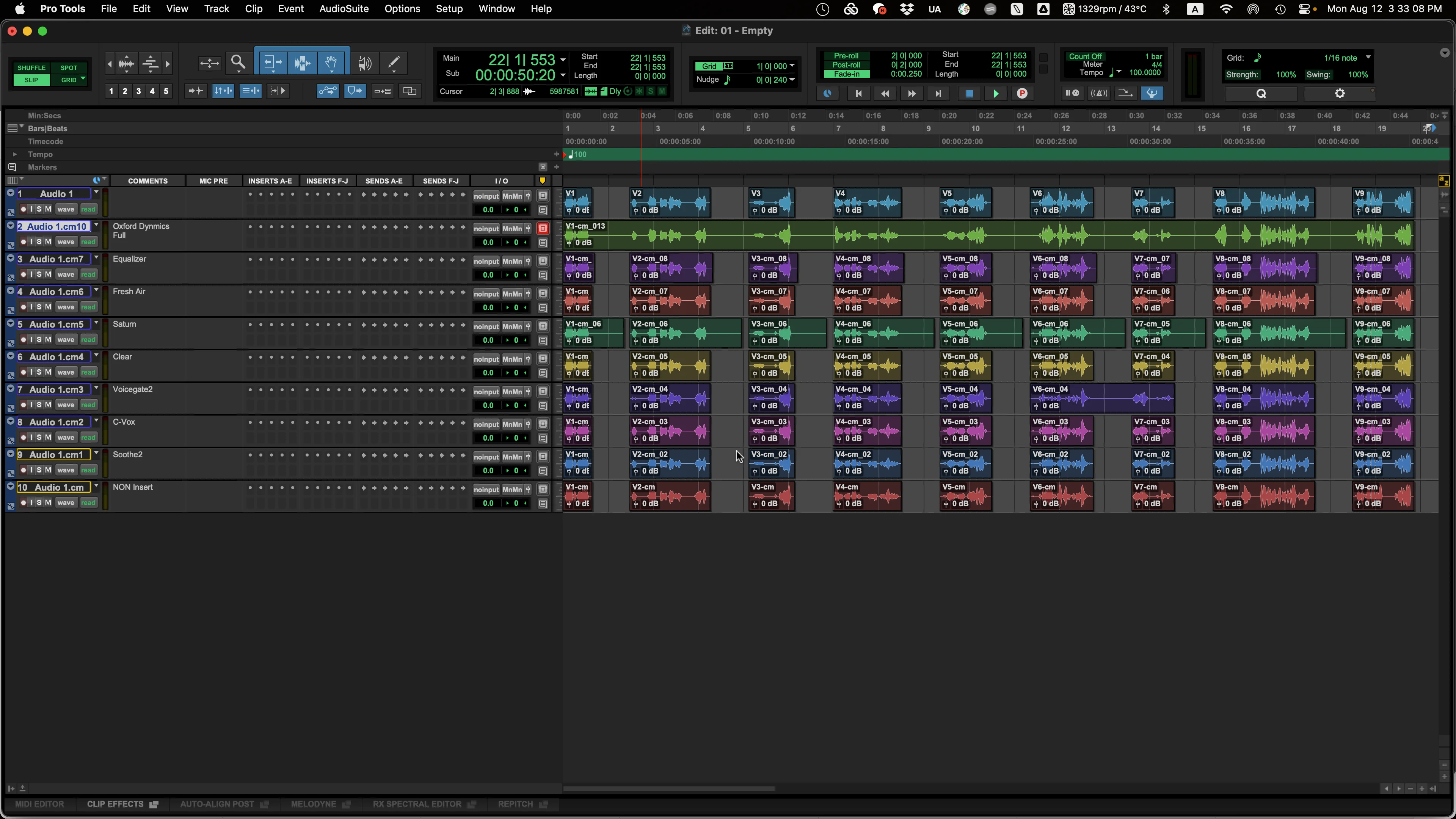
Due to the condition described above, the actual factors that have an impact are the plugins placed on the track.
The image above shows the results of testing with various plugins, and you can see that the results differ slightly from plugin to plugin.
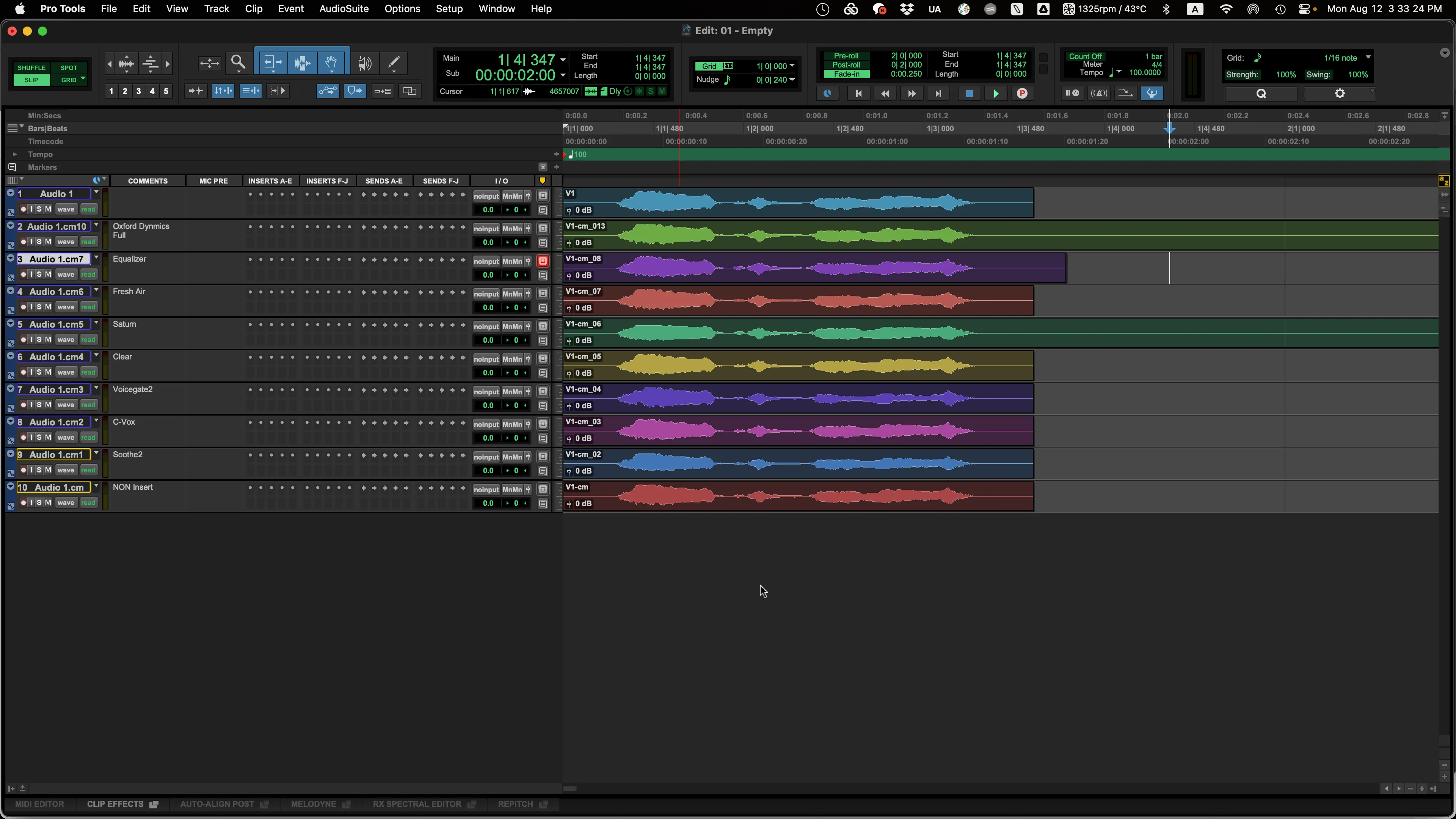
Certain plugins result in clips being completely merged into one, while others may produce clips that are slightly longer than expected.
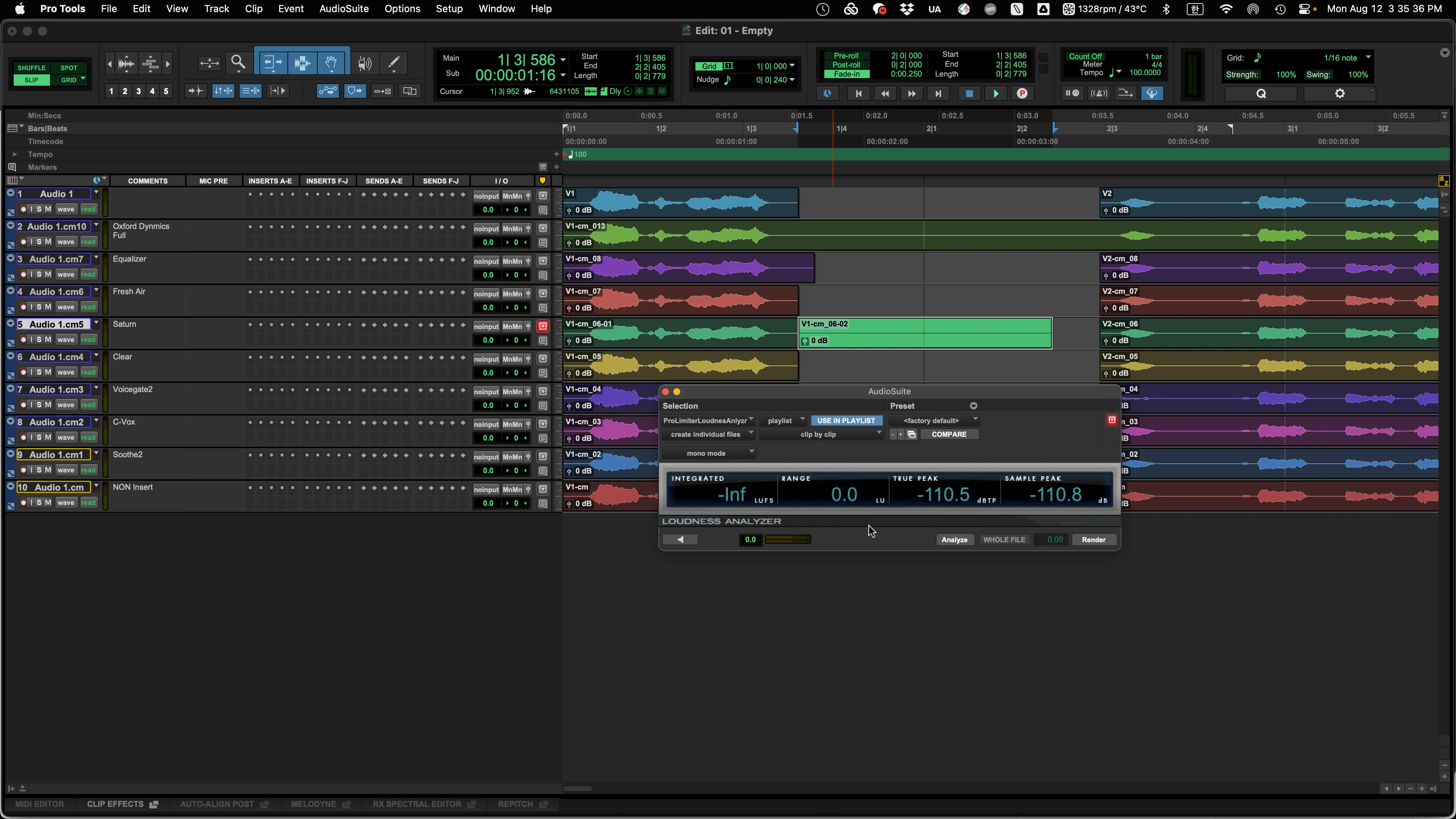
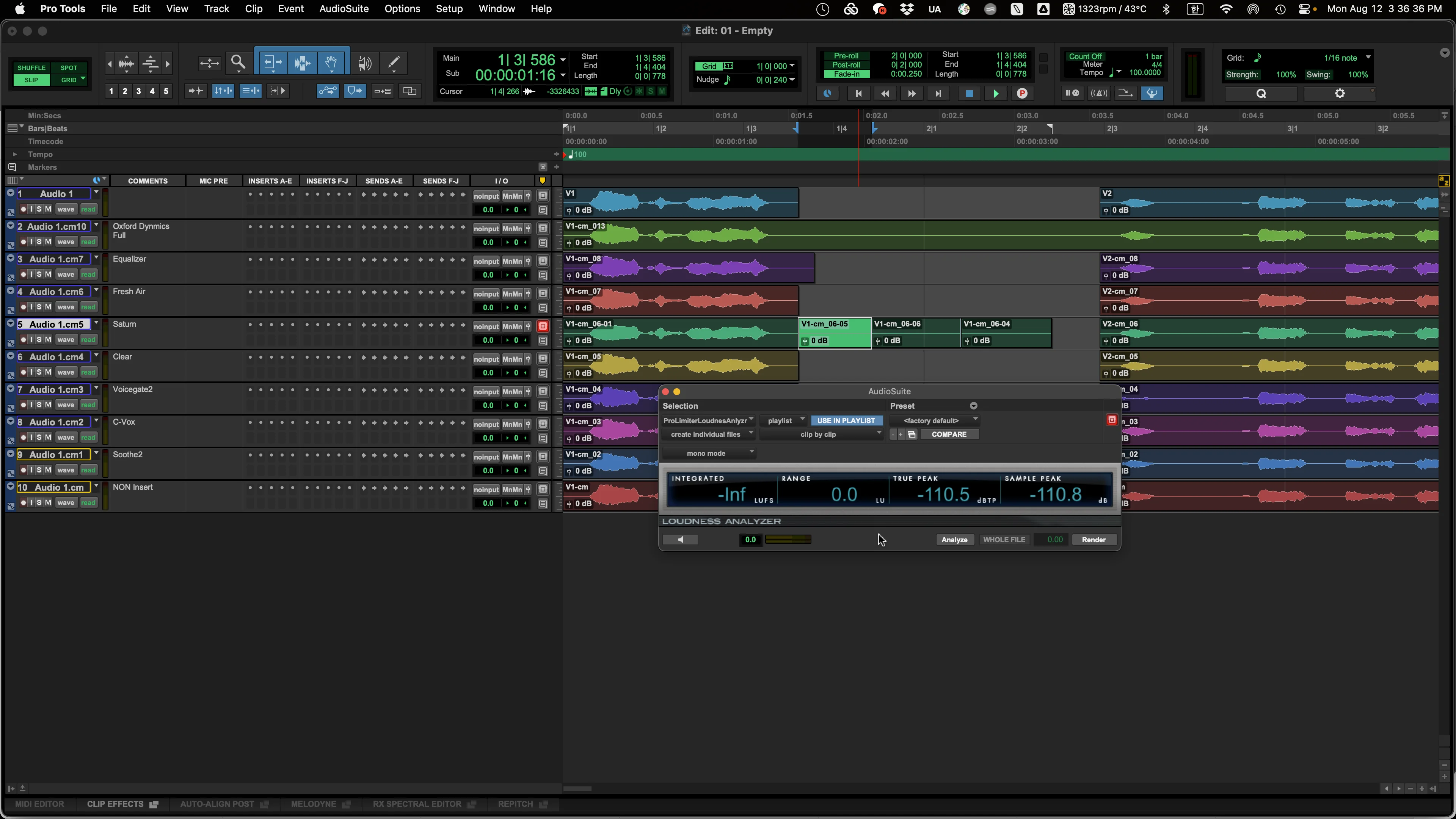
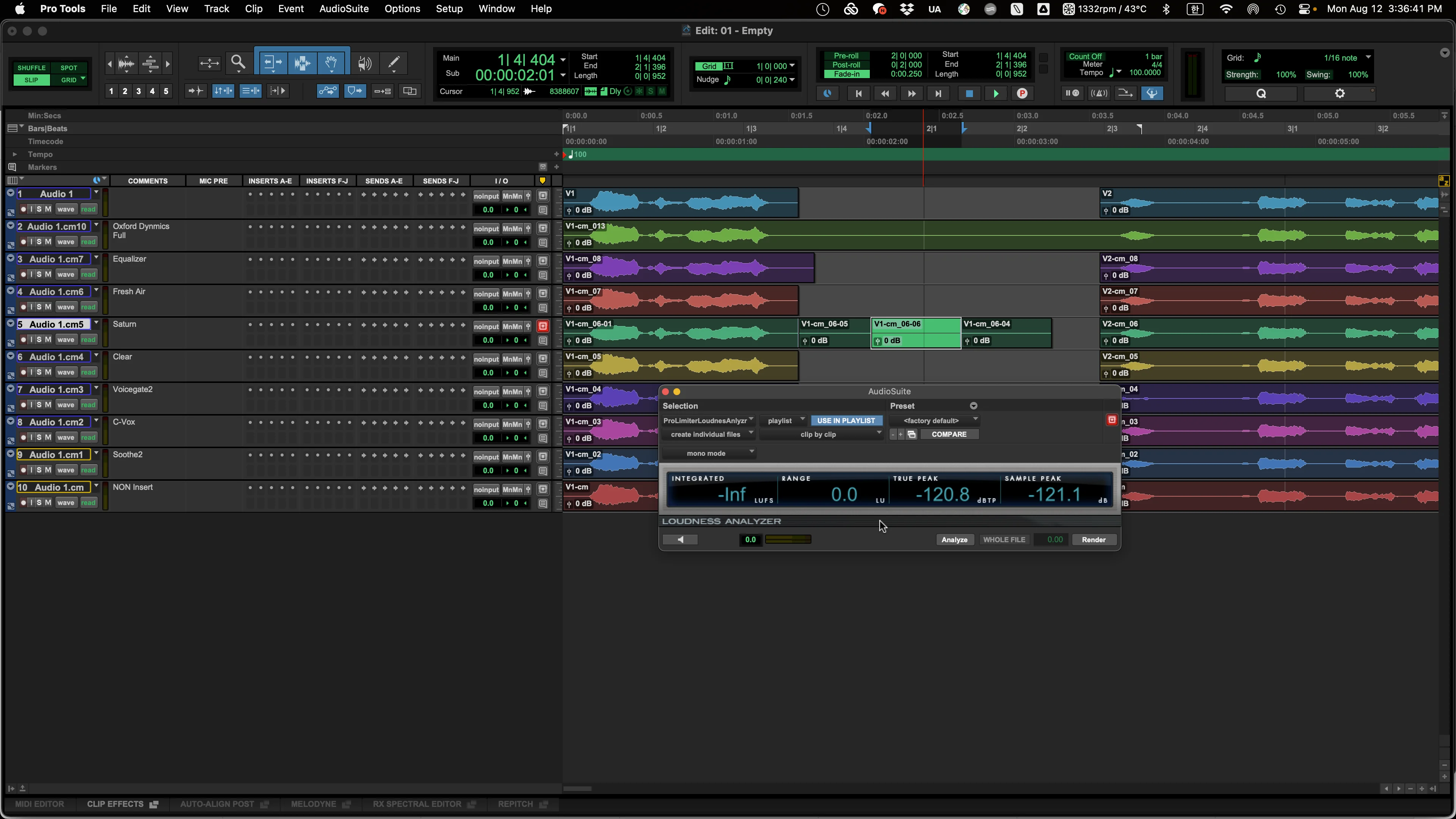
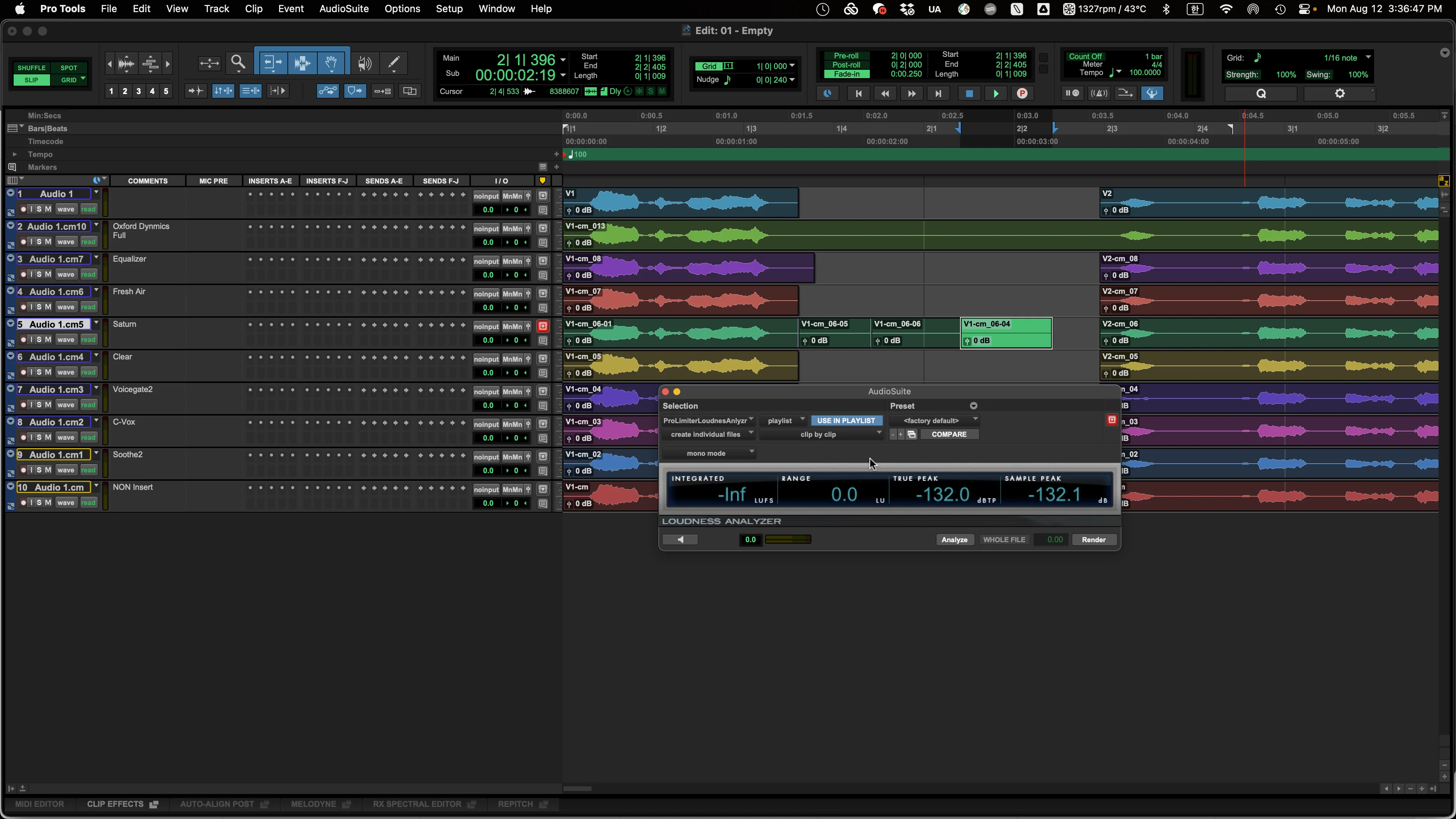
To our eyes and ears it appears to be silence, but when analyzed through an analyzer, residual signal is present.
In the case of Saturn, it seems the level gradually decreases until it reaches -144dB at the cut point.
As you can see, it registers at -110dB, which is higher than -144dB, and if you split that section into three parts and measure again, you can confirm that the level decreases progressively.
Oxford Dynamics shows a significantly high value, likely because it emulates an actual digital console. (When you test other emulation plugins afterwards, most yield similar results.)
In some cases, turning off Delay Compensation reduces this phenomenon, though I'm not sure why. (It doesn't resolve it completely.)
Problems This Causes
In truth, for music production purposes, there's rarely a need to handle hundreds or thousands of files on a single track, and having clips merged together doesn't pose a major problem — as long as they are positioned correctly in time.
However, in game CV (Character Voice) work, you may need to process anywhere from tens to thousands of files, and if this phenomenon occurs during that process, it can be absolutely catastrophic.
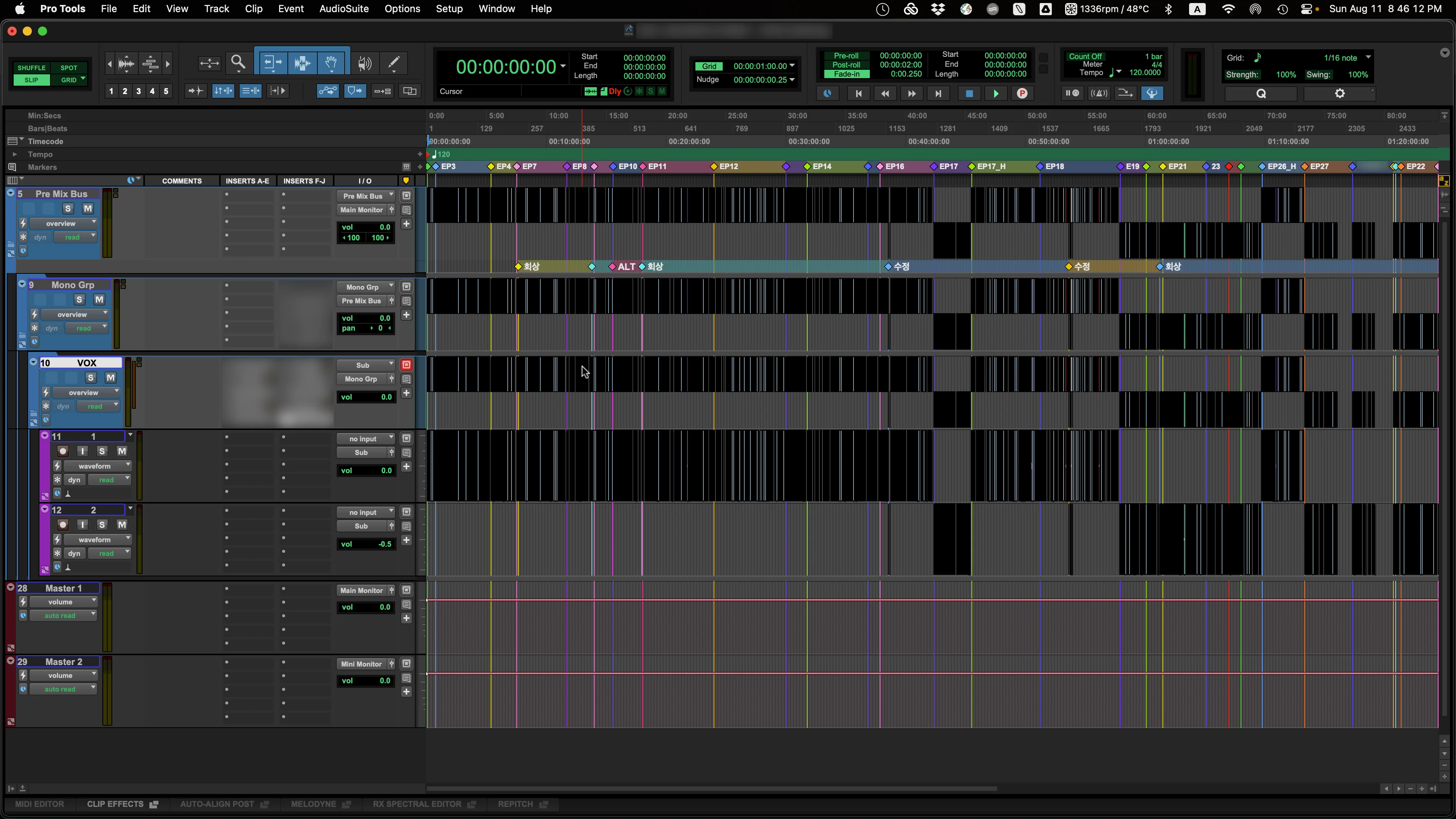
This project contains approximately 1,100 CV lines — imagine if they all got merged together during Commit...
After all that hard work, it would leave you wanting to hand in your resignation on the spot.
Solutions
There are four main solutions.
1 – Use plugins whose default noise floor level is -144dB or below.
Easier said than done. To figure this out, you'd have to test a wide range of plugins, and you may end up unable to use the plugins you actually want.
2 – Don't use Track Commit.
Depending on the situation, you may be able to process everything using Audiosuite only, but this can still lead to cumbersome issues with Clip FX, Volume, Pan, and other settings applied to tracks or clips.
Simply applying multiple plugins at once via Audiosuite isn't particularly difficult, but it does have its limitations.
RX, for instance, has fairly restricted processing options in this context.
(The Clip by Clip function, which processes clips individually, cannot be used, and batch processing can only be done smoothly through Entire Selection – Create Individual Files.)
But what if the plugin listens to the audio before and after in order to operate? What if there's automation?
3 – Use a different DAW
Logic Pro X has left me with nothing but bad memories when it comes to this type of work. I haven't used Cubase or other DAWs extensively enough to give a definitive answer, but Reaper might be the most straightforward alternative choice.
4 – Use a Gate
There is actually a fairly simple solution. Just insert a Gate-type plugin at the end of the plugin chain. (Console emulation gates excluded, of course.)
Generally speaking, a Gate, when closed, tends to show values at or below -144dB, so in most cases it should allow clips to be cut correctly.
That said, it's still not easy to get a perfectly clean match with the clip boundaries.
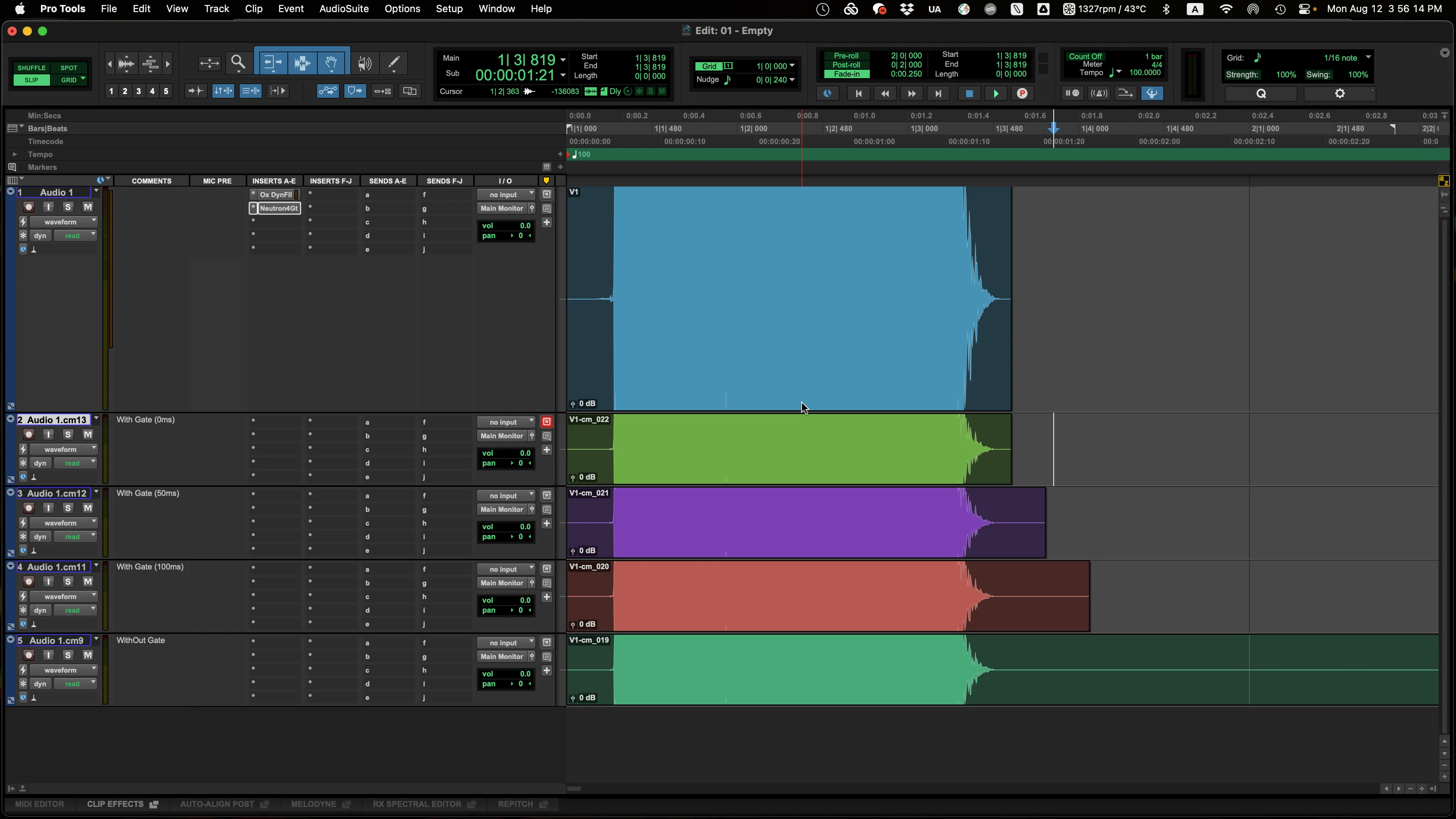
You can see the difference between using a Gate and varying Release values.
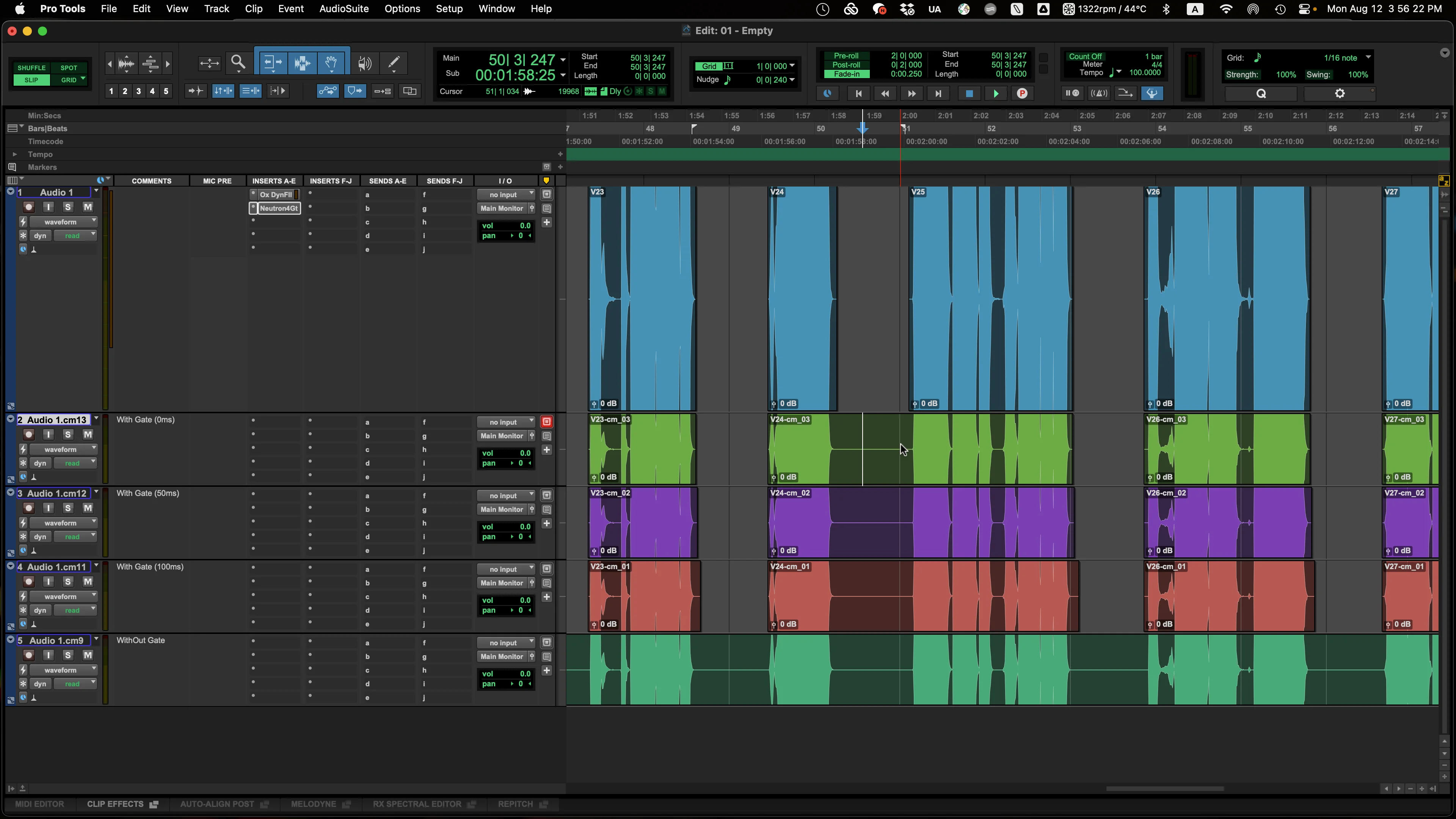
However, using a Gate does not guarantee a perfect cut in every situation.
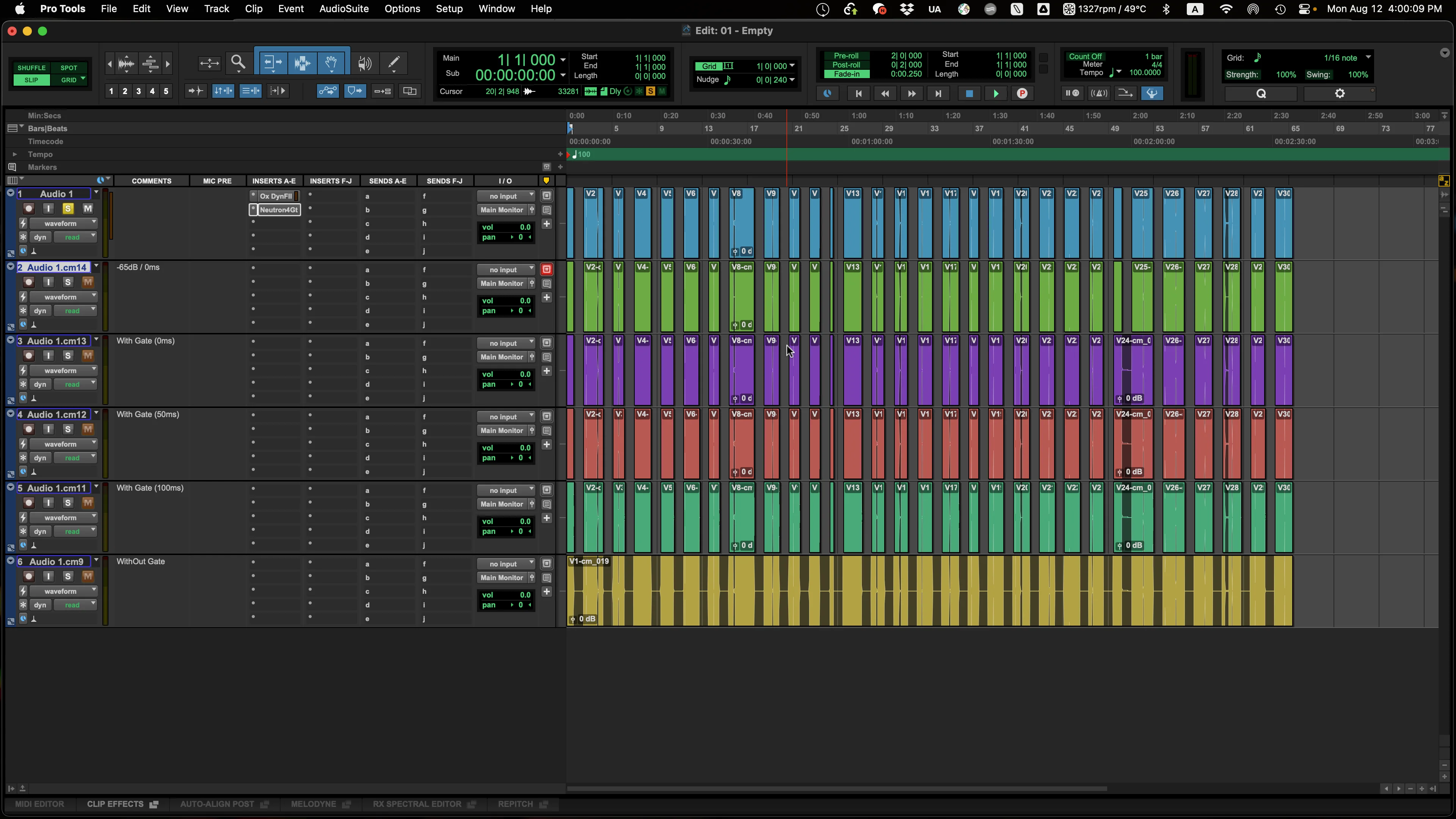
The Release value alone has its limits, and the Threshold value needs to be raised further.
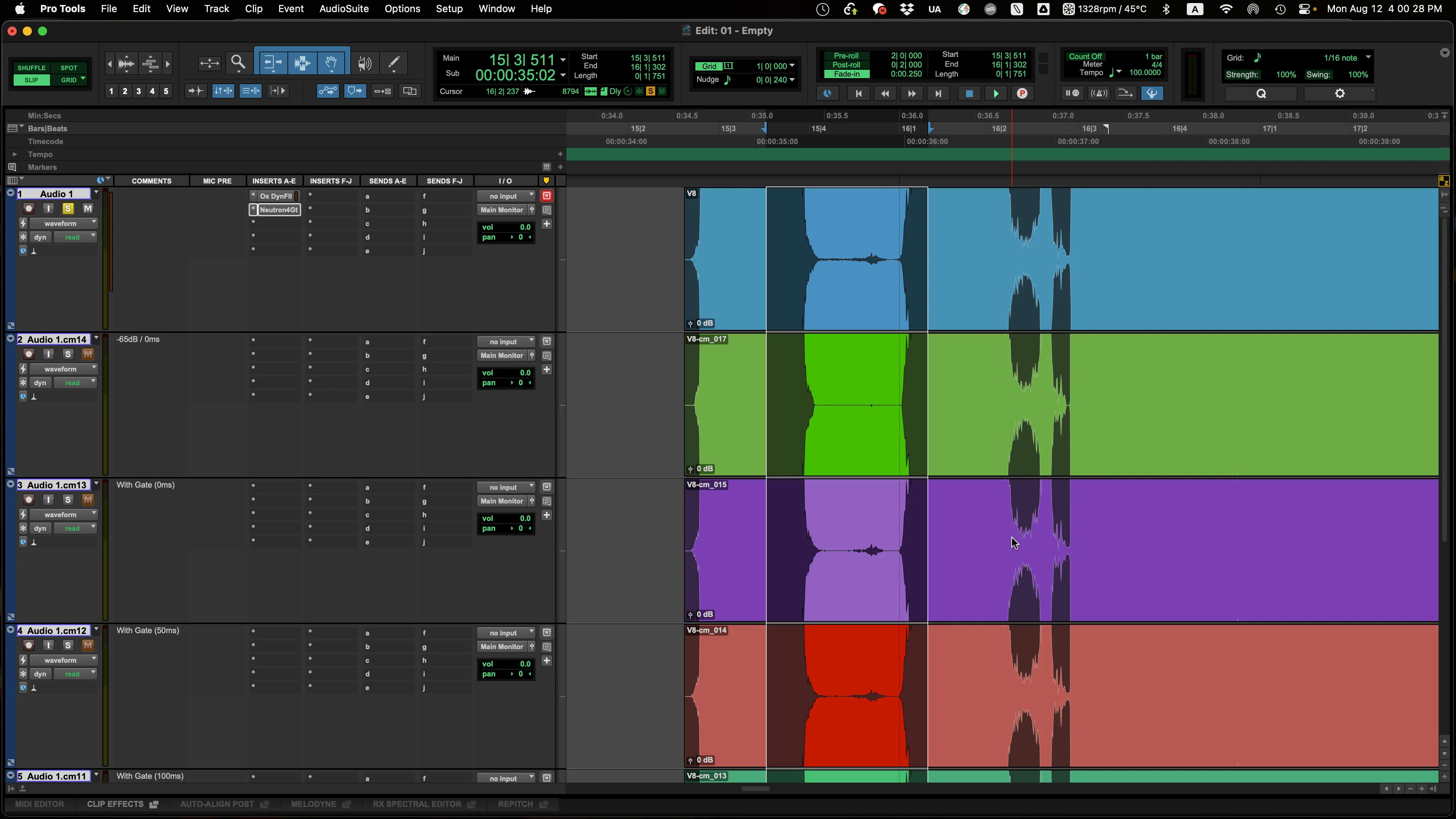
However, depending on the Threshold and Release values, silence between dialogue lines can also get cut like this.
If silence exists between CV lines, it can create a noticeable sense of discontinuity depending on the listening environment, overall LUFS level, and the original recording quality, so be careful.
If the recording environment is clean and the overall noise floor is low, this kind of silence may not sound unnatural, but the higher the overall noise floor, the greater the impact of room tone — so caution is warranted.
Closing Thoughts
In this post, we took a look at one of the issues that can arise with Pro Tools' Track Commit feature. Since using a Gate inevitably takes up one of the plugin slots, and Pro Tools allows up to 10 plugins per track, you may need to add an Aux or Routing Folder track, or use a plugin-within-a-plugin solution such as Patchwork to work around this limitation. It's a bit of a frustrating constraint for now.