

LUFS Analysis with Python
2024.08.22·Study·4 min readMUZIUM
Also available in:
English···
LUFS Analysis Using Python
Today's topic: LUFS Analysis Using Python
Article written on: August 22, 2024
Computer environment used for writing this tutorial
Apple MAC Studio M1 Max, 32GB (2022)
14.6.1 Sonoma
Pro Tools Ultimate 2023.06 / iZotope RX 11 Editor
Mac OS is set to English. Pro Tools is also used in English.
LUFS Analysis
To be honest, if you're simply organizing and working with just one or two files, LUFS analysis may not mean much.
That's because you can check it in real time by attaching an Analyzer to the end of the track while you work.
However, for projects that produce large numbers of individual files — such as games — you can end up with anywhere from hundreds to thousands of audio files, which makes relying solely on an Analyzer during the session clearly insufficient.
On top of that, larger projects typically involve more people, so without establishing a numerical standard, the sources edited by Worker A might be extremely loud while those edited by Worker B might be extremely quiet.
To solve these kinds of problems, it's essential to set a LUFS reference point and manage the workflow accordingly.
Can't we just run Batch Processing with LUFS Control to match the levels?
In some ways, this is the easiest approach.
You might reasonably ask: "Can't we just throw the finished files into RX Batch Processor and use Loudness Control to match them — and that's it?"
However, game CV (character voice) recordings tend to have an extremely wide dynamic range.
For example, the [...] expression commonly found in visual novels is often replaced with a breath, making it relatively quiet by nature. Lines delivered as a monologue are also inherently on the quieter side.
(And in order to preserve the natural feel, they need to be quiet.)
On the other hand, screams and emotional expressions used in battle sequences are inherently loud. Again, they need to be loud to feel natural.
Unfortunately, all programs approach this purely through volume analysis — they have no understanding of what a line is, what emotion it conveys, and simply focus on making everything uniform.
This leads to disasters where quiet monologues or short breaths get boosted to enormous levels, while the kiai shouts that should be loud end up getting pulled down.
(To solve this kind of issue, you'd probably need to combine AI deep learning with the ability to parse scripts and filenames, along with STT (Speech To Text) functionality to build the tool you'd actually want.)
As a result of these cases, even after running Batch Processing, you still need to listen through and manually fix any problematic files individually.
Aren't there any analysis programs available on the market?
There are surprisingly few options that simply "analyze only."
Most tools either immediately change the LUFS, or don't calculate an overall average at all.
Alto Studio does offer something somewhat similar,
and if you navigate to the Report section after analysis, it helps you calculate the average LUFS across all the files it processed.
The issue is that it always analyzes at the project level, which means you have to import folders one by one, which is quite inconvenient.
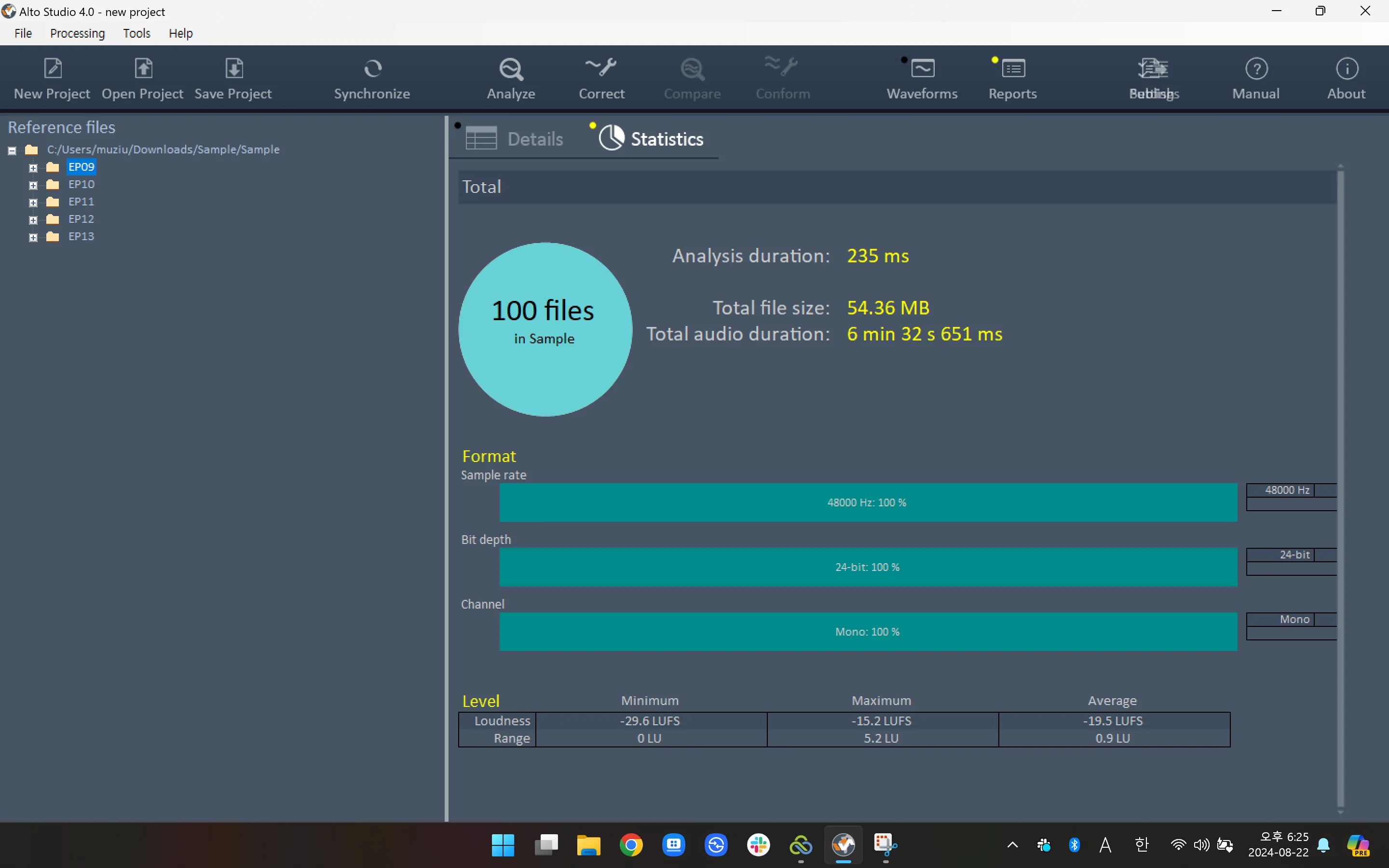
EP09 is selected, so it looks like only that folder was analyzed — but in reality, the entire root folder was analyzed.
So what script did we end up making?
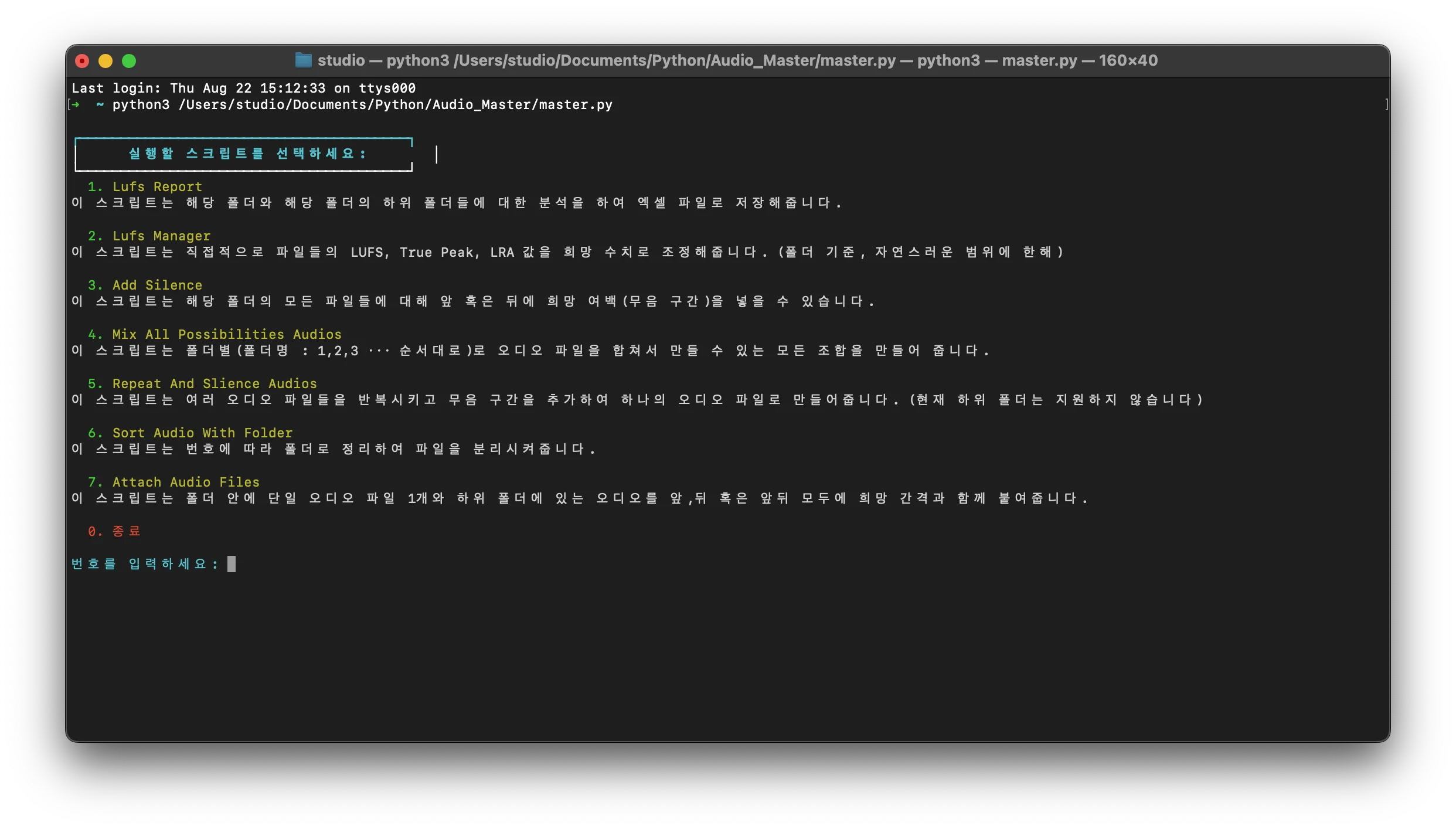
It was built as a script that runs in the terminal without a GUI.
Building a GUI felt unnecessary given that this isn't really my area of expertise, and I wasn't sure it was worth the effort, so I didn't take it any further.
The script itself was written entirely by GPT and Claude — I worked through it by thoroughly explaining the direction I wanted and reviewing the code as we went.
As you can see in the terminal screen, it includes a script called LUFS Manager for actually adjusting volume levels, as well as scripts capable of handling a variety of other audio tasks.
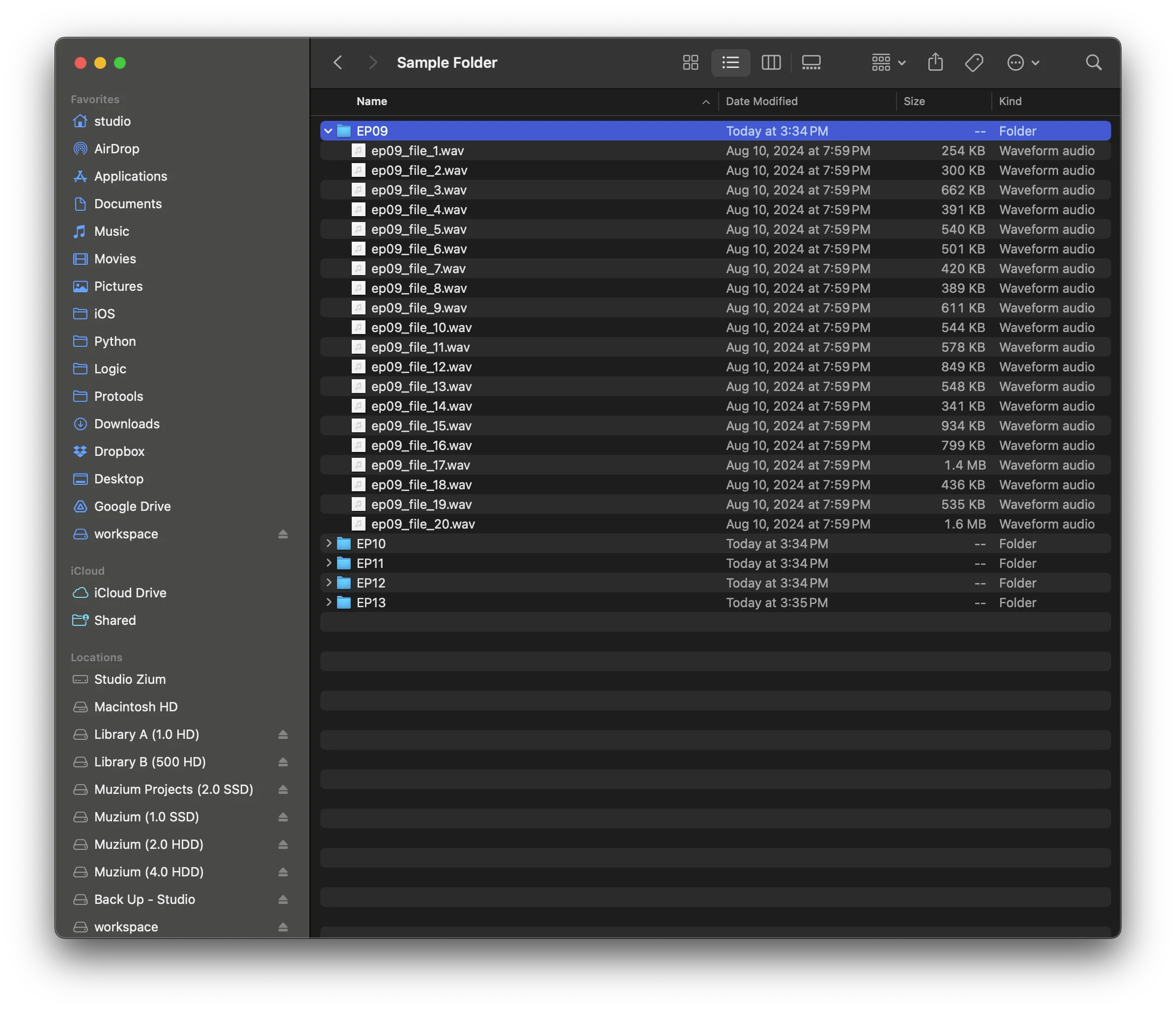
In this sample, a single root folder contains 5 subfolders, each holding 20 files.
Depending on the hierarchical structure of the game, each folder could represent a single scenario or a single character.
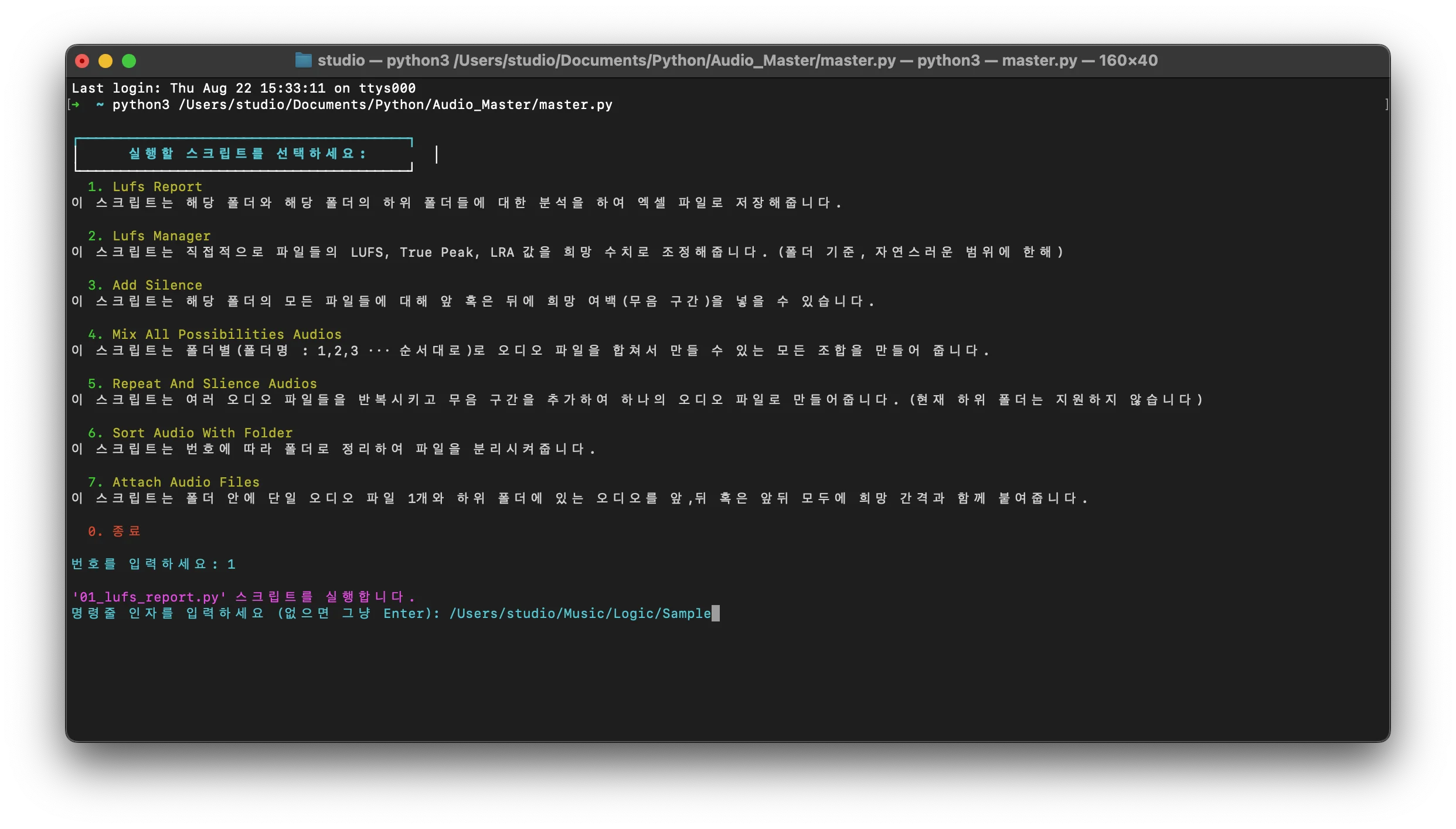
Enter the folder path via a command-line argument and run it, and...
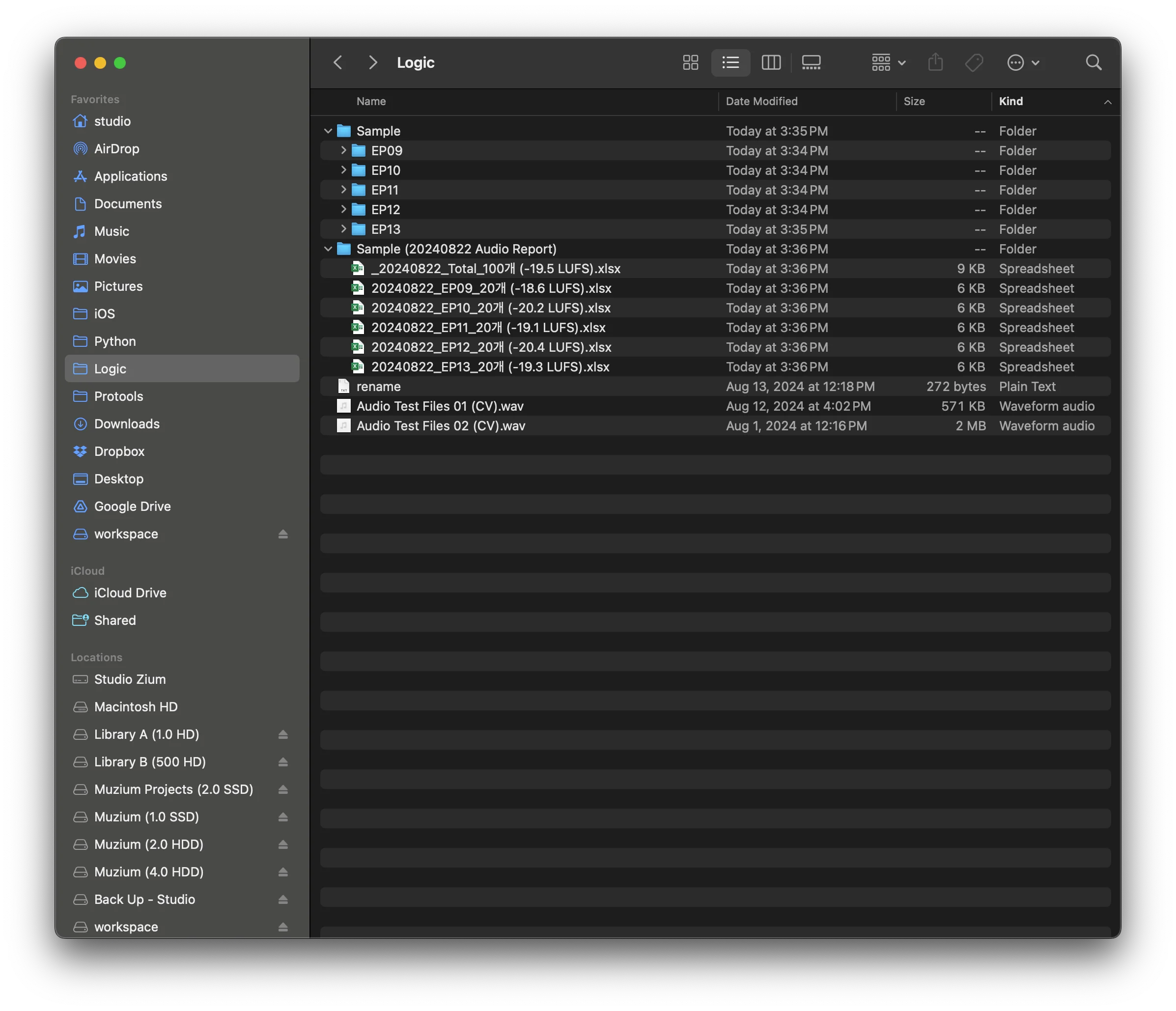
The script processes everything like this. (Of course, the messages shown in the terminal window are just informational prompts, not the actual output.)
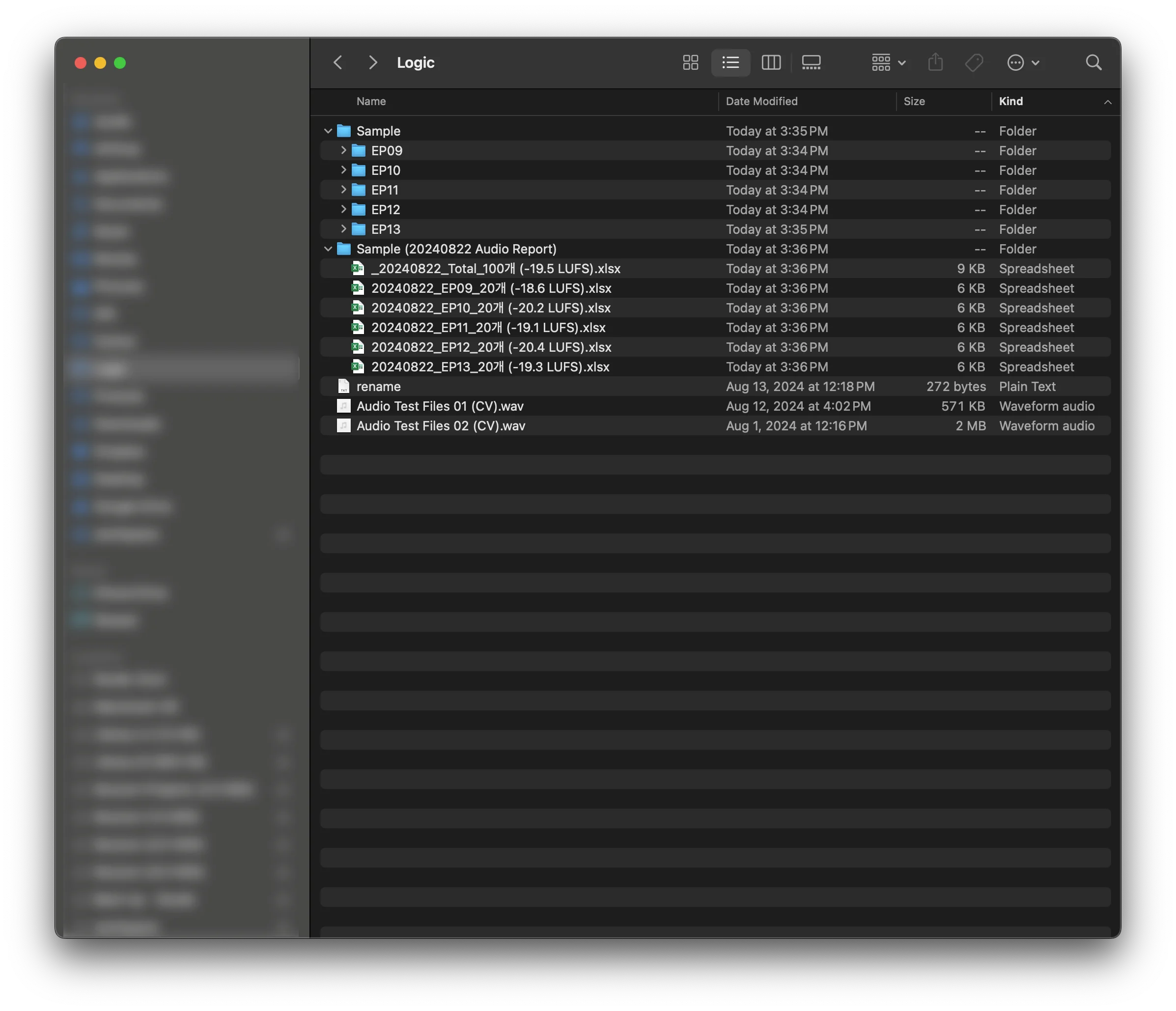
The output is created in the same location as the input folder, with the same name plus additional text appended.
The Excel file contains detailed data, and for the benefit of impatient users, the Excel filename itself is set to include the average LUFS value.
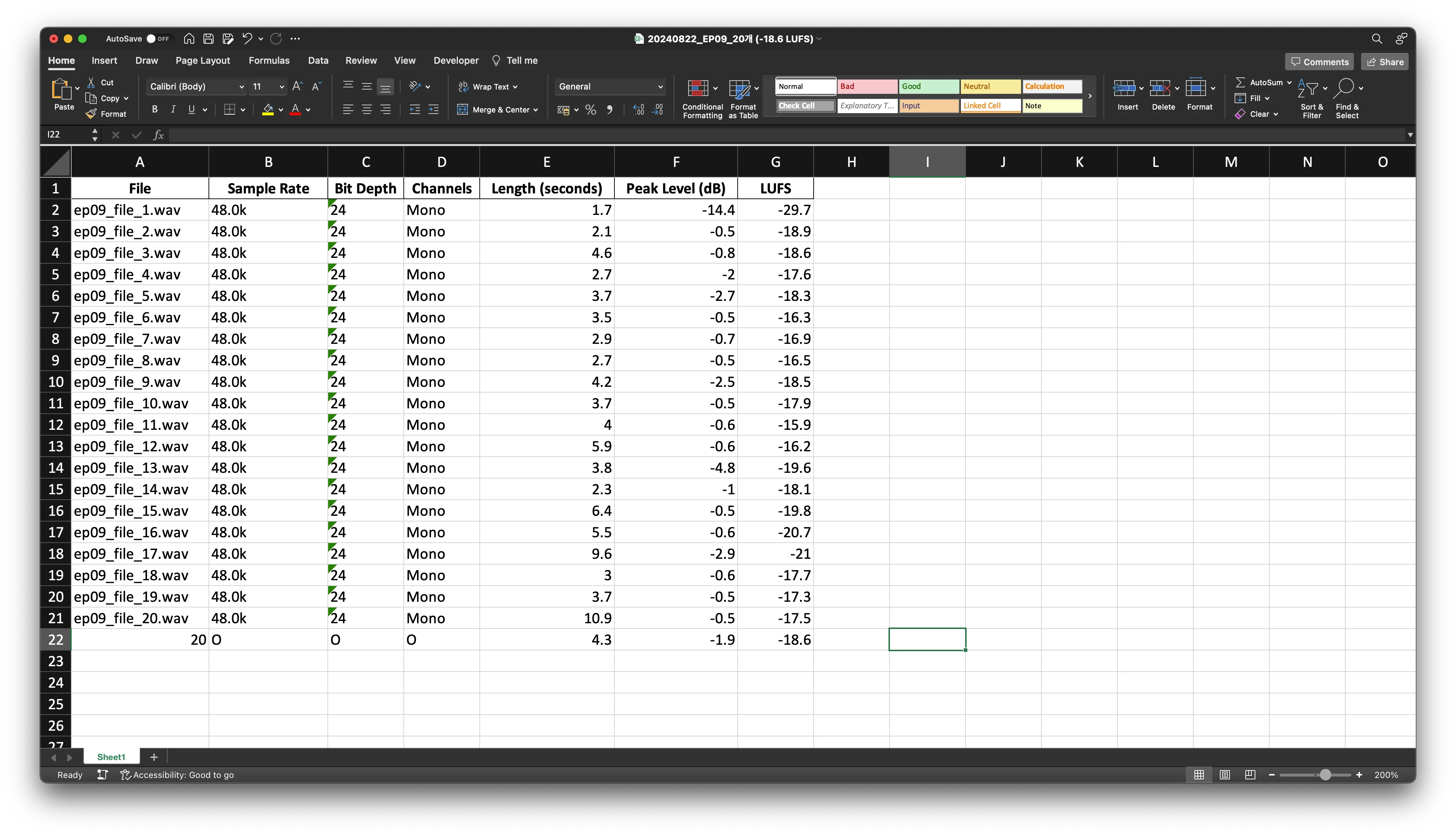
The first file has quite a low LUFS, doesn't it? That's because it's a [...] breath, not a spoken line.
The Excel file records the filename, Sample Rate, Bit Depth, Channel, Length, Peak Level, and LUFS for each file.
An average is calculated at the very bottom for fields where averaging is meaningful, and for values like Sample Rate and Bit Depth, an "O" is displayed when all data is identical, and an "X" when it is not.
From there, you can continue with whatever work you need to do based on the analyzed data.
Since we have already built a separate script that directly adjusts LUFS values, we use that for any additional fine-tuning.